Linux杂记
ifconfig
ifconfig是我们最常用的查看当前系统的网卡和 ip 地址信息的命令。如果你的机器上还没安装 ifconfig 命令,可以使用如下命令安装:
sudo apt install net-tools
安装成功以后,我们就可以使用ifconfig查看机器网卡信息了:
[root@localhost ~]# ifconfig
ens33: flags=4163<UP,BROADCAST,RUNNING,MULTICAST>  mtu 1500
        inet 192.168.206.140  netmask 255.255.255.0  broadcast 192.168.206.255
        inet6 fe80::1599:dcc4:b3e8:7fce  prefixlen 64  scopeid 0x20<link>
        ether 00:0c:29:ee:01:80  txqueuelen 1000  (Ethernet)
        RX packets 1005  bytes 77224 (75.4 KiB)
        RX errors 0  dropped 0  overruns 0  frame 0
        TX packets 349  bytes 47206 (46.0 KiB)
        TX errors 0  dropped 0 overruns 0  carrier 0  collisions 0

lo: flags=73<UP,LOOPBACK,RUNNING>  mtu 65536
        inet 127.0.0.1  netmask 255.0.0.0
        inet6 ::1  prefixlen 128  scopeid 0x10<host>
        loop  txqueuelen 1000  (Local Loopback)
        RX packets 4  bytes 352 (352.0 B)
        RX errors 0  dropped 0  overruns 0  frame 0
        TX packets 4  bytes 352 (352.0 B)
        TX errors 0  dropped 0 overruns 0  carrier 0  collisions 0
上述输出显示了机器当前激活的每个网卡(网络设备)的 ipv4、ipv6 地址、子网掩码、广播地址等信息,这里一共两个网卡,分别是ens33和lo。
我们可以使用-s选项显示网卡信息的精简列表:
[root@localhost ~]# ifconfig -s
Iface      MTU    RX-OK RX-ERR RX-DRP RX-OVR    TX-OK TX-ERR TX-DRP TX-OVR Flg
ens33            1500     1086      0      0 0           379      0      0      0 BMRU
lo              65536        4      0      0 0             4      0      0      0 LRU
默认情况下,ifconfig命令只会显示激活的网卡信息,如果要显示所有的(包括未激活)的网卡,我们可以使用-a参数。
如果我们想激活或者禁用某个网卡,可以使用 ifconfig up 和 ifconfig down 命令,用法如下:
ifconfig 网卡名 up
ifconfig 网卡名 down
我们来演示一下:
[root@localhost ~]# ifconfig
ens33: flags=4163<UP,BROADCAST,RUNNING,MULTICAST>  mtu 1500
        inet 192.168.206.140  netmask 255.255.255.0  broadcast 192.168.206.255
        inet6 fe80::1599:dcc4:b3e8:7fce  prefixlen 64  scopeid 0x20<link>
        ether 00:0c:29:ee:01:80  txqueuelen 1000  (Ethernet)
        RX packets 1398  bytes 114269 (111.5 KiB)
        RX errors 0  dropped 0  overruns 0  frame 0
        TX packets 601  bytes 97657 (95.3 KiB)
        TX errors 0  dropped 0 overruns 0  carrier 0  collisions 0

lo: flags=73<UP,LOOPBACK,RUNNING>  mtu 65536
        inet 127.0.0.1  netmask 255.0.0.0
        inet6 ::1  prefixlen 128  scopeid 0x10<host>
        loop  txqueuelen 1000  (Local Loopback)
        RX packets 12  bytes 1056 (1.0 KiB)
        RX errors 0  dropped 0  overruns 0  frame 0
        TX packets 12  bytes 1056 (1.0 KiB)
        TX errors 0  dropped 0 overruns 0  carrier 0  collisions 0

## 禁用网卡 lo 后默认只能看到一个网卡信息
[root@localhost ~]# ifconfig lo down
[root@localhost ~]# ifconfig
ens33: flags=4163<UP,BROADCAST,RUNNING,MULTICAST>  mtu 1500
        inet 192.168.206.140  netmask 255.255.255.0  broadcast 192.168.206.255
        inet6 fe80::1599:dcc4:b3e8:7fce  prefixlen 64  scopeid 0x20<link>
        ether 00:0c:29:ee:01:80  txqueuelen 1000  (Ethernet)
        RX packets 1510  bytes 123232 (120.3 KiB)
        RX errors 0  dropped 0  overruns 0  frame 0
        TX packets 657  bytes 104751 (102.2 KiB)
        TX errors 0  dropped 0 overruns 0  carrier 0  collisions 0

[root@localhost ~]# ifconfig -a
ens33: flags=4163<UP,BROADCAST,RUNNING,MULTICAST>  mtu 1500
        inet 192.168.206.140  netmask 255.255.255.0  broadcast 192.168.206.255
        inet6 fe80::1599:dcc4:b3e8:7fce  prefixlen 64  scopeid 0x20<link>
        ether 00:0c:29:ee:01:80  txqueuelen 1000  (Ethernet)
        RX packets 1543  bytes 125948 (122.9 KiB)
        RX errors 0  dropped 0  overruns 0  frame 0
        TX packets 675  bytes 107251 (104.7 KiB)
        TX errors 0  dropped 0 overruns 0  carrier 0  collisions 0

lo: flags=8<LOOPBACK>  mtu 65536
        inet 127.0.0.1  netmask 255.0.0.0
        loop  txqueuelen 1000  (Local Loopback)
        RX packets 12  bytes 1056 (1.0 KiB)
        RX errors 0  dropped 0  overruns 0  frame 0
        TX packets 12  bytes 1056 (1.0 KiB)
        TX errors 0  dropped 0 overruns 0  carrier 0  collisions 0
## 再次启用网卡 lo
[root@localhost ~]# ifconfig lo up
[root@localhost ~]# ifconfig
ens33: flags=4163<UP,BROADCAST,RUNNING,MULTICAST>  mtu 1500
        inet 192.168.206.140  netmask 255.255.255.0  broadcast 192.168.206.255
        inet6 fe80::1599:dcc4:b3e8:7fce  prefixlen 64  scopeid 0x20<link>
        ether 00:0c:29:ee:01:80  txqueuelen 1000  (Ethernet)
        RX packets 1615  bytes 131924 (128.8 KiB)
        RX errors 0  dropped 0  overruns 0  frame 0
        TX packets 715  bytes 112423 (109.7 KiB)
        TX errors 0  dropped 0 overruns 0  carrier 0  collisions 0

lo: flags=73<UP,LOOPBACK,RUNNING>  mtu 65536
        inet 127.0.0.1  netmask 255.0.0.0
        inet6 ::1  prefixlen 128  scopeid 0x10<host>
        loop  txqueuelen 1000  (Local Loopback)
        RX packets 12  bytes 1056 (1.0 KiB)
        RX errors 0  dropped 0  overruns 0  frame 0
        TX packets 12  bytes 1056 (1.0 KiB)
        TX errors 0  dropped 0 overruns 0  carrier 0  collisions 0
ifconfig 还可以将一个 ip 地址绑定到某个网卡上,或将一个 ip 从某个网卡上解绑,使用如下命令:
ifconfig 网卡名 add ip地址
ifconfig 网卡名 del ip地址
演示如下:
[root@localhost ~]# ifconfig
ens33: flags=4163<UP,BROADCAST,RUNNING,MULTICAST>  mtu 1500
        inet 192.168.206.140  netmask 255.255.255.0  broadcast 192.168.206.255
        inet6 fe80::1599:dcc4:b3e8:7fce  prefixlen 64  scopeid 0x20<link>
        ether 00:0c:29:ee:01:80  txqueuelen 1000  (Ethernet)
        RX packets 1615  bytes 131924 (128.8 KiB)
        RX errors 0  dropped 0  overruns 0  frame 0
        TX packets 715  bytes 112423 (109.7 KiB)
        TX errors 0  dropped 0 overruns 0  carrier 0  collisions 0

lo: flags=73<UP,LOOPBACK,RUNNING>  mtu 65536
        inet 127.0.0.1  netmask 255.0.0.0
        inet6 ::1  prefixlen 128  scopeid 0x10<host>
        loop  txqueuelen 1000  (Local Loopback)
        RX packets 12  bytes 1056 (1.0 KiB)
        RX errors 0  dropped 0  overruns 0  frame 0
        TX packets 12  bytes 1056 (1.0 KiB)
        TX errors 0  dropped 0 overruns 0  carrier 0  collisions 0

[root@localhost ~]# ifconfig ens33 add 192.168.206.150
[root@localhost ~]# ifconfig
ens33: flags=4163<UP,BROADCAST,RUNNING,MULTICAST>  mtu 1500
        inet 192.168.206.140  netmask 255.255.255.0  broadcast 192.168.206.255
        inet6 fe80::1599:dcc4:b3e8:7fce  prefixlen 64  scopeid 0x20<link>
        ether 00:0c:29:ee:01:80  txqueuelen 1000  (Ethernet)
        RX packets 1804  bytes 145940 (142.5 KiB)
        RX errors 0  dropped 0  overruns 0  frame 0
        TX packets 781  bytes 119581 (116.7 KiB)
        TX errors 0  dropped 0 overruns 0  carrier 0  collisions 0

ens33:0: flags=4163<UP,BROADCAST,RUNNING,MULTICAST>  mtu 1500
        inet 192.168.206.150  netmask 255.255.255.0  broadcast 192.168.206.255
        ether 00:0c:29:ee:01:80  txqueuelen 1000  (Ethernet)

lo: flags=73<UP,LOOPBACK,RUNNING>  mtu 65536
        inet 127.0.0.1  netmask 255.0.0.0
        inet6 ::1  prefixlen 128  scopeid 0x10<host>
        loop  txqueuelen 1000  (Local Loopback)
        RX packets 12  bytes 1056 (1.0 KiB)
        RX errors 0  dropped 0  overruns 0  frame 0
        TX packets 12  bytes 1056 (1.0 KiB)
        TX errors 0  dropped 0 overruns 0  carrier 0  collisions 0
上述操作中,对于网卡 ens33 原来绑定了 ip 地址 192.168.206.140,我们使用 ifconfig add 命令绑定了一个新的 ip :192.168.206.150,现在我们可以使用这个新的 ip 地址来访问原来的网络了。
同理,如果要解绑这个 ip,可以按如下操作:
[root@localhost ~]# ifconfig ens33 del 192.168.206.150
[root@localhost ~]# ifconfig -a
ens33: flags=4163<UP,BROADCAST,RUNNING,MULTICAST>  mtu 1500
        inet 192.168.206.140  netmask 255.255.255.0  broadcast 192.168.206.255
        inet6 fe80::1599:dcc4:b3e8:7fce  prefixlen 64  scopeid 0x20<link>
        ether 00:0c:29:ee:01:80  txqueuelen 1000  (Ethernet)
        RX packets 2127  bytes 172321 (168.2 KiB)
        RX errors 0  dropped 0  overruns 0  frame 0
        TX packets 953  bytes 139954 (136.6 KiB)
        TX errors 0  dropped 0 overruns 0  carrier 0  collisions 0

lo: flags=73<UP,LOOPBACK,RUNNING>  mtu 65536
        inet 127.0.0.1  netmask 255.0.0.0
        inet6 ::1  prefixlen 128  scopeid 0x10<host>
        loop  txqueuelen 1000  (Local Loopback)
        RX packets 18  bytes 1560 (1.5 KiB)
        RX errors 0  dropped 0  overruns 0  frame 0
        TX packets 18  bytes 1560 (1.5 KiB)
        TX errors 0  dropped 0 overruns 0  carrier 0  collisions 0
在 Windows 上与 ifconfig 相对应的命令是 ipconfig,如在 Windows 上查看所有网卡信息可以使用 ipconfig /all。
ping
ping 命令是我们最常用的命令之一,一般用于侦测本机到目标主机的网络是否通畅。其使用方法是:
ping ip地址
使用方法如下:
[root@localhost ~]# ping 120.55.94.78
PING 120.55.94.78 (120.55.94.78) 56(84) bytes of data.
64 bytes from 120.55.94.78: icmp_seq=1 ttl=128 time=11.0 ms
64 bytes from 120.55.94.78: icmp_seq=2 ttl=128 time=17.3 ms
64 bytes from 120.55.94.78: icmp_seq=3 ttl=128 time=16.2 ms
64 bytes from 120.55.94.78: icmp_seq=4 ttl=128 time=10.6 ms
64 bytes from 120.55.94.78: icmp_seq=5 ttl=128 time=10.2 ms
64 bytes from 120.55.94.78: icmp_seq=6 ttl=128 time=18.7 ms
64 bytes from 120.55.94.78: icmp_seq=7 ttl=128 time=15.8 ms
64 bytes from 120.55.94.78: icmp_seq=8 ttl=128 time=10.8 ms
64 bytes from 120.55.94.78: icmp_seq=9 ttl=128 time=10.8 ms
64 bytes from 120.55.94.78: icmp_seq=10 ttl=128 time=11.5 ms
如果目标网络不可达,ping 命令会一直发送而无输出结果,直到我们按 Ctrl + C 中断,才会统计结果。
[root@localhost ~]# ping 120.55.94.79
PING 120.55.94.79 (120.55.94.79) 56(84) bytes of data.
^C^C
--- 120.55.94.79 ping statistics ---
578 packets transmitted, 0 received, 100% packet loss, time 577119ms
Windows 系统上,这种情况下,ping 命令会返回超时的包数量,而不是一直阻塞。且在 Linux 系统上 ping 命令是一直发送数据包,直到人工主动中断;而 Windows 机器上默认会发送 4 个数据包后停止,如果想一直发送而不停止,可以使用 -t 选项。
当然,ping 命令的目标也可以是一个域名,这样通过 ping 这个域名,我们可以得到这个域名解析后的 ip 地址:
[root@localhost ~]# ping www.baidu.com
PING www.a.shifen.com (61.135.169.121) 56(84) bytes of data.
64 bytes from 61.135.169.121 (61.135.169.121): icmp_seq=1 ttl=128 time=30.3 ms
64 bytes from 61.135.169.121 (61.135.169.121): icmp_seq=2 ttl=128 time=28.8 ms
64 bytes from 61.135.169.121 (61.135.169.121): icmp_seq=3 ttl=128 time=29.0 ms
64 bytes from 61.135.169.121 (61.135.169.121): icmp_seq=4 ttl=128 time=31.9 ms
64 bytes from 61.135.169.121 (61.135.169.121): icmp_seq=5 ttl=128 time=28.8 ms
64 bytes from 61.135.169.121 (61.135.169.121): icmp_seq=6 ttl=128 time=27.8 ms
64 bytes from 61.135.169.121 (61.135.169.121): icmp_seq=7 ttl=128 time=29.0 ms
^C
--- www.a.shifen.com ping statistics ---
7 packets transmitted, 7 received, 0% packet loss, time 6011ms
rtt min/avg/max/mdev = 27.822/29.430/31.968/1.244 ms
我们这里得到 www.baidu.com 对应的 ip 地址是 61.135.169.121。
ping 命令是通过发送 ICMP 数据包来实现的。
netstat
无论是 Windows 和 Linux 都提供了 netstat 命令,这个命令是我们使用的较多的查看网络连接状态的命令。这里以 Linux 系统为例,其常见选项有:
-a (all)显示所有选项,netstat 默认不显示 LISTEN 相关。
-t (tcp)仅显示 tcp 相关选项
-u (udp)仅显示 udp 相关选项
-n 不显示别名,能显示数字的全部转化成数字
-l 仅列出有在 Listen (监听) 的服務状态
-p 显示建立相关链接的程序名
-r 显示路由信息,路由表
-e 显示扩展信息,例如uid等
-s 按各个协议进行统计 (重要)
-c 每隔一个固定时间,执行该 netstat 命令。
我们来详细介绍一下 -n 选项,默认情况下,对于一些有别名的 ip 地址和端口号 netstat 会以其别名来显示,例如 127.0.0.1 会显示成 localhost,80 端口会显示成 http。如下所示:
[root@iZ238vnojlyZ ~]# netstat -at
Active Internet connections (servers and established)
Proto Recv-Q Send-Q Local Address           Foreign Address         State
tcp        0      0 0.0.0.0:svn             0.0.0.0:*               LISTEN
tcp        0      0 0.0.0.0:http            0.0.0.0:*               LISTEN
tcp        0      0 0.0.0.0:ssh             0.0.0.0:*               LISTEN
tcp        0      0 0.0.0.0:ddi-tcp-1       0.0.0.0:*               LISTEN
tcp        0      0 0.0.0.0:italk           0.0.0.0:*               LISTEN
tcp        0      0 0.0.0.0:dnp             0.0.0.0:*               LISTEN
tcp        0      0 localhost:32000         0.0.0.0:*               LISTEN
tcp        0      0 0.0.0.0:commtact-http   0.0.0.0:*               LISTEN
tcp        0    404 iZ238vnojlyZ:ssh        101.224.250.233:57844   ESTABLISHED
tcp        0      0 iZ238vnojlyZ:59520      100.100.45.131:http     ESTABLISHED
tcp        0      0 localhost:32000         localhost:31000         ESTABLISHED
tcp6       0      0 [::]:mysql              [::]:*                  LISTEN
tcp6       0      0 [::]:ftp                [::]:*                  LISTEN
tcp6       0      0 localhost:31000         localhost:32000         ESTABLISHED
我们加上 -n 选项看一下效果:
[root@iZ238vnojlyZ ~]# netstat -atn
Active Internet connections (servers and established)
Proto Recv-Q Send-Q Local Address           Foreign Address         State
tcp        0      0 0.0.0.0:3690            0.0.0.0:*               LISTEN
tcp        0      0 0.0.0.0:80              0.0.0.0:*               LISTEN
tcp        0      0 0.0.0.0:22              0.0.0.0:*               LISTEN
tcp        0      0 0.0.0.0:8888            0.0.0.0:*               LISTEN
tcp        0      0 0.0.0.0:12345           0.0.0.0:*               LISTEN
tcp        0      0 0.0.0.0:20000           0.0.0.0:*               LISTEN
tcp        0      0 127.0.0.1:32000         0.0.0.0:*               LISTEN
tcp        0      0 0.0.0.0:20002           0.0.0.0:*               LISTEN
tcp        0    404 120.55.94.78:22         101.224.250.233:57844   ESTABLISHED
tcp        0      0 10.117.203.175:59520    100.100.45.131:80       ESTABLISHED
tcp       15      0 127.0.0.1:32000         127.0.0.1:31000         ESTABLISHED
tcp6       0      0 :::3306                 :::*                    LISTEN
tcp6       0      0 :::21                   :::*                    LISTEN
tcp6       0      0 127.0.0.1:31000         127.0.0.1:32000         ESTABLISHED
如上所示,所有的 ip 地址和端口号就不再以别名形式显示了。
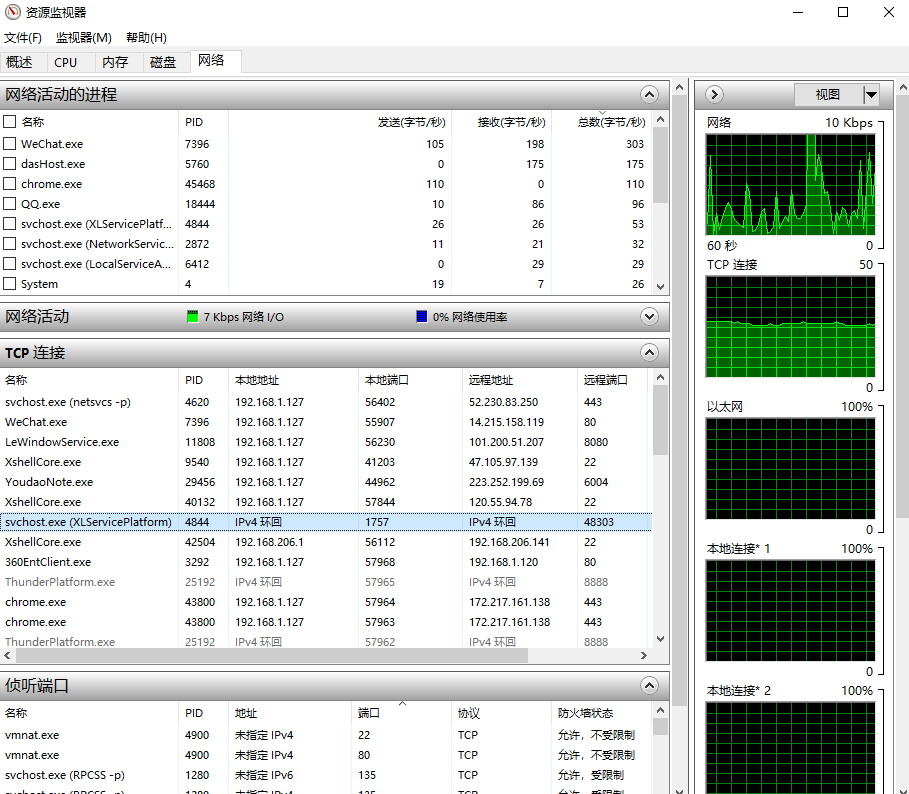
在 Windows 系统上,除了可以使用 netstat 查看网络状态信息以外,还可以通过任务管理器打开资源监视器来查看当前系统各种网络连接状态(以下是 Win10 的截图):
lsof
lsof 命令是 Linux 系统的扩展工具,它的含义是 list opened filedesciptor (列出已经打开的文件描述符),在 Linux 系统中,所有的与资源句柄相关的东西都可以统一抽象成文件描述符(filedescriptor,简称 fd)。一个文件句柄是一个 fd,一个 socket 对象也可以称之为 fd 等等。
默认情况下,系统是不存在这个命令的,你需要安装一下,使用如下命令安装:
sudo apt install lsof
我们来看一下这个命令的使用效果:
amass@AmassPC:~$ sudo lsof
COMMAND    PID TID TASKCMD    USER   FD      TYPE             DEVICE  SIZE/OFF              NODE NAME
init         1                root  cwd       DIR               8,32      4096                 2 /
init         1                root  rtd       DIR               8,32      4096                 2 /
init         1                root  txt       REG               0,22   1392928   562949953577009 /init
init         1                root    0u      CHR                1,3       0t0                 3 /dev/null
init         1                root    1u      CHR                1,3       0t0                 3 /dev/null
init         1                root    2u      CHR                1,3       0t0                 3 /dev/null
init         1                root    3w      CHR               1,11       0t0                 8 /dev/kmsg
init         1                root    4r      REG                0,4         0        4026532241 mnt
init         1                root    5r      REG                0,4         0        4026532365 mnt
init         1                root    6u      DIR               8,32      4096                 2 /
init         1                root    7u     sock                0,7       0t0             17347 protocol: AF_VSOCK
init         1                root    8u  a_inode               0,11         0             17142 [eventpoll]
init         1                root    9u     unix 0x000000009bc2faff       0t0             17349 /run/WSL/1_interop type=SEQPACKET
init         1                root   11u     sock                0,7       0t0             17350 protocol: AF_VSOCK
init         1                root   12r      DIR               8,32      4096             40698 /home/amass
init         1                root   13r      DIR               8,32      4096             40698 /home/amass
init         1                root   14r      DIR               8,32      4096             40698 /home/amass
init         1                root   15r      DIR               8,32      4096             40698 /home/amass
init         1                root  100u     sock                0,7       0t0             19787 protocol: AF_VSOCK
init         1   5 init       root  cwd       DIR               8,32      4096                 2 /
init         1   5 init       root  rtd       DIR               8,32      4096                 2 /
init         1   5 init       root  txt       REG               0,22   1392928   562949953577009 /init
init         1   5 init       root    0u      CHR                1,3       0t0                 3 /dev/null
init         1   5 init       root    1u      CHR                1,3       0t0                 3 /dev/null
init         1   5 init       root    2u      CHR                1,3       0t0                 3 /dev/null
init         1   5 init       root    3w      CHR               1,11       0t0                 8 /dev/kmsg
init         1   5 init       root    4r      REG                0,4         0        4026532241 mnt
结果显示中列出了各个进程打开的各种 fd 类型,对于 Uinx Socket,lsof 命令会显示出其详细的路径,打开的文件 fd 亦是如此。
使用 lsof 命令有三点需要注意:
-
默认情况下,lsof 的输出比较多,我们可以使用 grep 命令过滤我们想要查看的进程打开的 fd 信息,如:
lsof -i | grep node或者使用 lsof -p pid 也能过滤出指定的进程打开的 fd 信息:
amass@AmassPC:~$ lsof -i | grep node
node     91 amass   18u  IPv6   1413      0t0  TCP *:42851 (LISTEN)
node     91 amass   21u  IPv6  17371      0t0  TCP localhost:42851->localhost:37450 (ESTABLISHED)
node    119 amass   18u  IPv4    251      0t0  TCP localhost:37450->localhost:42851 (ESTABLISHED)
node    147 amass   18u  IPv4  17693      0t0  TCP localhost:37456->localhost:42851 (ESTABLISHED)
node 165 amass 19u IPv6 17375 0t0 TCP localhost:42851->localhost:37456 (ESTABLISHED) -
lsof 命令只能查看到当前用户有权限查看到的进程 fd 信息,对于其没有权限的进程,最右边一列会显示 “Permission denied”。如下所示:
sshd      26759          root  cwd   unknown                              /proc/26759/cwd (readlink: Permission denied)
sshd      26759          root  rtd   unknown                              /proc/26759/root (readlink: Permission denied)
sshd      26759          root  txt   unknown                              /proc/26759/exe (readlink: Permission denied)
sshd      26759          root NOFD                                        /proc/26759/fd (opendir: Permission denied)
bash      26761          root  cwd   unknown                              /proc/26761/cwd (readlink: Permission denied)
bash      26761          root  rtd   unknown                              /proc/26761/root (readlink: Permission denied)
bash      26761          root  txt   unknown                              /proc/26761/exe (readlink: Permission denied)
bash 26761 root NOFD /proc/26761/fd (opendir: Permission denied) -
lsof 命令第一栏进程名在显示的时候,默认显示前 n 个字符,这样如果我们需要显示完整的进程名以方便过滤的话,可以使用 +c 选项。用法如下:
#最左侧的程序名最大显示 15 个字符
amass@AmassPC:~$ sudo lsof +c 15
当然,如果你设置值太大, lsof 便不会采用你设置的最大值,而是使用默认最大值。
上文也介绍了,socket 也是一种 fd,如果需要仅显示系统的网络连接信息,使用的是 -i 选项即可,这个选项可以形象地显示出系统当前的出入连接情况:
amass@AmassPC:~$ lsof -i
COMMAND PID  USER   FD   TYPE DEVICE SIZE/OFF NODE NAME
node     91 amass   18u  IPv6   1413      0t0  TCP *:42851 (LISTEN)
node     91 amass   21u  IPv6  17371      0t0  TCP localhost:42851->localhost:37450 (ESTABLISHED)
node    119 amass   18u  IPv4    251      0t0  TCP localhost:37450->localhost:42851 (ESTABLISHED)
node    147 amass   18u  IPv4  17693      0t0  TCP localhost:37456->localhost:42851 (ESTABLISHED)
node    165 amass   19u  IPv6  17375      0t0  TCP localhost:42851->localhost:37456 (ESTABLISHED)
看到图中的连接方向了吧?
当然,和 netstat 命令一样,lsof -i 默认也会显示 ip 地址和端口号的别名,我们只要使用 -n 和 -P 选项就能相对应地显示 ip 地址和端口号了,综合起来就是 lsof -Pni:
amass@AmassPC:~$ lsof -Pni
COMMAND PID  USER   FD   TYPE DEVICE SIZE/OFF NODE NAME
node     91 amass   18u  IPv6   1413      0t0  TCP *:42851 (LISTEN)
node     91 amass   21u  IPv6  17371      0t0  TCP 127.0.0.1:42851->127.0.0.1:37450 (ESTABLISHED)
node    119 amass   18u  IPv4    251      0t0  TCP 127.0.0.1:37450->127.0.0.1:42851 (ESTABLISHED)
node    147 amass   18u  IPv4  17693      0t0  TCP 127.0.0.1:37456->127.0.0.1:42851 (ESTABLISHED)
node    165 amass   19u  IPv6  17375      0t0  TCP 127.0.0.1:42851->127.0.0.1:37456 (ESTABLISHED)
curl
有读者应该用过图形化的 http 请求模拟工具 PostMan,与 PostMan 一样,curl 命令是 Linux 上可以模拟发送 http 请求的一个非常常用的命令,可以使用如下命令安装:
sudo apt install curl
curl 最基础的用法是 curl 页面url,例如:
curl http://www.baidu.com
其默认行为是把目标页面内容输出到 shell 窗口:
[root@localhost ~]# curl http://www.baidu.com
<!DOCTYPE html>
<!--STATUS OK--><html> <head><meta http-equiv=content-type content=text/html;charset=utf-8><meta http-equiv=X-UA-Compatible content=IE=Edge><meta content=always name=referrer><link rel=stylesheet type=text/css href=http://s1.bdstatic.com/r/www/cache/bdorz/baidu.min.css><title>百度一下,你就知道</title></head> <body link=#0000cc> <div id=wrapper> <div id=head> <div class=head_wrapper> <div class=s_form> <div class=s_form_wrapper> <div id=lg> <img hidefocus=true src=//www.baidu.com/img/bd_logo1.png width=270 height=129> </div> <form id=form name=f action=//www.baidu.com/s class=fm> <input type=hidden name=bdorz_come value=1> <input type=hidden name=ie value=utf-8> <input type=hidden name=f value=8> <input type=hidden name=rsv_bp value=1> <input type=hidden name=rsv_idx value=1> <input type=hidden name=tn value=baidu><span class="bg s_ipt_wr"><input id=kw name=wd class=s_ipt value maxlength=255 autocomplete=off autofocus></span><span class="bg s_btn_wr"><input type=submit id=su value=百度一下 class="bg s_btn"></span> </form> </div> </div> <div id=u1> <a href=http://news.baidu.com name=tj_trnews class=mnav>新闻</a> <a href=http://www.hao123.com name=tj_trhao123 class=mnav>hao123</a> <a href=http://map.baidu.com name=tj_trmap class=mnav>地图</a> <a href=http://v.baidu.com name=tj_trvideo class=mnav>视频</a> <a href=http://tieba.baidu.com name=tj_trtieba class=mnav>贴吧</a> <noscript> <a href=http://www.baidu.com/bdorz/login.gif?login&tpl=mn&u=http%3A%2F%2Fwww.baidu.com%2f%3fbdorz_come%3d1 name=tj_login class=lb>登录</a> </noscript> <script>document.write('<a href="http://www.baidu.com/bdorz/login.gif?login&tpl=mn&u='+ encodeURIComponent(window.location.href+ (window.location.search === "" ? "?" : "&")+ "bdorz_come=1")+ '" name="tj_login" class="lb">登录</a>');</script> <a href=//www.baidu.com/more/ name=tj_briicon class=bri style="display: block;">更多产品</a> </div> </div> </div> <div id=ftCon> <div id=ftConw> <p id=lh> <a href=http://home.baidu.com>关于百度</a> <a href=http://ir.baidu.com>About Baidu</a> </p> <p id=cp>©2017 Baidu <a href=http://www.baidu.com/duty/>使用百度前必读</a> <a href=http://jianyi.baidu.com/ class=cp-feedback>意见反馈</a> 京ICP证030173号 <img src=//www.baidu.com/img/gs.gif> </p> </div> </div> </div> </body> </html>
你也可以把页面保存到本地(等价于 -o 选项),示例:
curl http://www.baidu.com > index.html
## 等价于
curl -o index.html http://www.baidu.com
http 常用的请求方式是 GET 和 POST 两种方式,我们可以使用 -X 选项来显式指定请求是 GET 还是 POST 方式(不指定使用默认 GET 方式):
curl -X GET http://www.baidu.com/index.php?s=9
如果使用 GET 方式,curl 提供了另外一个专门的选项 -G (或 –get)来设置。
如果是 POST 方法,除了需要使用 -X 选项(或 –request)指定请求方法,还需要使用 -d (或 –data)指定 POST 的数据内容:
curl -X POST -d 'somepostdata' 'https://www.somesite.com/api/v1/chat'
我们有时候需要在发送 http 请求时设置增加一些头部信息,可以使用 -H(或 –header)指定,如果有多个选项可以使用多次 -H 来逐一设置。例如:
curl -X POST -H 'Content-Type: application/x-www-form-urlencoded' -H 'Accept: application/json' -H 'X-Requested-With: XMLHttpRequest' -d 'somepostdata' 'https://www.somesite.com/api/v1/chat'
当然,对于一些常用的 http 头字段,curl 提供了单独的选项:例如 user-agent 字段可以使用 -A 选项(或 –user-agent)设置;referer 字段可以使用 -e 选项(或 –referer)设置;等等。
如果你希望 http 的应答结果中包含 http 头部信息,可以使用 -i 选项(或 –include),演示如下:
[root@localhost ~]# curl -i http://www.baidu.com/
HTTP/1.1 200 OK
Accept-Ranges: bytes
Cache-Control: private, no-cache, no-store, proxy-revalidate, no-transform
Connection: Keep-Alive
Content-Length: 2381
Content-Type: text/html
Date: Sat, 09 Mar 2019 06:47:15 GMT
Etag: "588604c4-94d"
Last-Modified: Mon, 23 Jan 2017 13:27:32 GMT
Pragma: no-cache
Server: bfe/1.0.8.18
Set-Cookie: BDORZ=27315; max-age=86400; domain=.baidu.com; path=/
<!DOCTYPE html>
<!--STATUS OK--><html> <head><meta http-equiv=content-type content=text/html;charset=utf-8><meta http-equiv=X-UA-Compatible content=IE=Edge><meta content=always name=referrer><link rel=stylesheet type=text/css href=http://s1.bdstatic.com/r/www/cache/bdorz/baidu.min.css><title>百度一下,你就知道</title></head> <body link=#0000cc> <div id=wrapper> <div id=head> <div class=head_wrapper> <div class=s_form> <div class=s_form_wrapper> <div id=lg> <img hidefocus=true src=//www.baidu.com/img/bd_logo1.png width=270 height=129> </div> <form id=form name=f action=//www.baidu.com/s class=fm> <input type=hidden name=bdorz_come value=1> <input type=hidden name=ie value=utf-8> <input type=hidden name=f value=8> <input type=hidden name=rsv_bp value=1> <input type=hidden name=rsv_idx value=1> <input type=hidden name=tn value=baidu><span class="bg s_ipt_wr"><input id=kw name=wd class=s_ipt value maxlength=255 autocomplete=off autofocus></span><span class="bg s_btn_wr"><input type=submit id=su value=百度一下 class="bg s_btn"></span> </form> </div> </div> <div id=u1> <a href=http://news.baidu.com name=tj_trnews class=mnav>新闻</a> <a href=http://www.hao123.com name=tj_trhao123 class=mnav>hao123</a> <a href=http://map.baidu.com name=tj_trmap class=mnav>地图</a> <a href=http://v.baidu.com name=tj_trvideo class=mnav>视频</a> <a href=http://tieba.baidu.com name=tj_trtieba class=mnav>贴吧</a> <noscript> <a href=http://www.baidu.com/bdorz/login.gif?login&tpl=mn&u=http%3A%2F%2Fwww.baidu.com%2f%3fbdorz_come%3d1 name=tj_login class=lb>登录</a> </noscript> <script>document.write('<a href="http://www.baidu.com/bdorz/login.gif?login&tpl=mn&u='+ encodeURIComponent(window.location.href+ (window.location.search === "" ? "?" : "&")+ "bdorz_come=1")+ '" name="tj_login" class="lb">登录</a>');</script> <a href=//www.baidu.com/more/ name=tj_briicon class=bri style="display: block;">更多产品</a> </div> </div> </div> <div id=ftCon> <div id=ftConw> <p id=lh> <a href=http://home.baidu.com>关于百度</a> <a href=http://ir.baidu.com>About Baidu</a> </p> <p id=cp>©2017 Baidu <a href=http://www.baidu.com/duty/>使用百度前必读</a> <a href=http://jianyi.baidu.com/ class=cp-feedback>意见反馈</a> 京ICP证030173号 <img src=//www.baidu.com/img/gs.gif> </p> </div> </div> </div> </body> </html>
在有些情况下,如果只想显示 http 应答的头部信息(不是 html 文档头部 )可以使用 -I 选项(或 –head),演示如下:
[root@localhost ~]# curl -I http://www.baidu.com/
HTTP/1.1 200 OK
Accept-Ranges: bytes
Cache-Control: private, no-cache, no-store, proxy-revalidate, no-transform
Connection: Keep-Alive
Content-Length: 277
Content-Type: text/html
Date: Sat, 09 Mar 2019 06:42:16 GMT
Etag: "575e1f8a-115"
Last-Modified: Mon, 13 Jun 2016 02:50:50 GMT
Pragma: no-cache
Server: bfe/1.0.8.18
注意:上述输出结果中,13 行的空行是刻意保留的,http 协议的头部每一行以 \r\n 结束,整个头部再以一个 额外的 \r\n 结束,所以正好末尾是有个空行。
如果你需要使用代理去发送 http 请求可以使用 -x 选项(或 –proxy),使用形式如下:
curl -x <[protocol://][user:password@]proxyhost[:port]>
上面介绍的 curl 选项有点多,读者不必刻意记住每个选项,只需要记住常用的即可,其他的实际需要时去 man 手册查看帮助即可。
tcpdump
tcpdump 是 Linux 系统提供的一个非常强大的抓包工具,熟练使用它,对我们排查网络问题非常有用。如果你的机器上还没有安装,可以使用如下命令安装:
sudo apt install tcpdump
如果要使用 tcpdump 命令必须具有 sudo 权限。
tcpdump 常用的选项有:
-
-i 指定要捕获的目标网卡名,网卡名可以使用前面章节中介绍的 ifconfig 命令获得;如果要抓所有网卡的上的包,可以使用 any 关键字。
## 抓取网卡ens33上的包
tcpdump -i ens33
## 抓取所有网卡上的包
tcpdump -i any -
-X 以 ASCII 和十六进制的形式输出捕获的数据包内容,减去链路层的包头信息;-XX 以 ASCII 和十六进制的形式输出捕获的数据包内容,包括链路层的包头信息。
-
-n 不要将 ip 地址显示成别名的形式;-nn 不要将 ip 地址和端口以别名的形式显示。
-
-S 以绝对值显示包的 ISN 号(包序列号),默认以上一包的偏移量显示。
-
-vv 抓包的信息详细地显示;-vvv 抓包的信息更详细地显示。
-
-w 将抓取的包的原始信息(不解析,也不输出)写入文件中,后跟文件名:
tcpdump -i any -w filename -
-r 从利用 -w 选项保存的包文件中读取数据包信息。
除了可以使用选项以外,tcpdump 还支持各种数据包过滤的表达式,常见的形式如下:
## 仅显示经过端口 8888 上的数据包(包括tcp:8888和udp:8888)
tcpdump -i any 'port 8888'

## 仅显示经过端口是 tcp:8888 上的数据包
tcpdump -i any 'tcp port 8888'

## 仅显示源端口是 tcp:8888 的数据包
tcpdump -i any 'tcp src port 8888'

## 仅显示源端口是 tcp:8888 或目标端口是 udp:9999 的包
tcpdump -i any 'tcp src port 8888 or udp dst port 9999'

## 仅显示源地址是127.0.0.1 且源端口是 tcp:9999 的包 ,以 ASCII 和十六进制显示详细输出,
## 不显示 ip 地址和端口号的别名
tcpdump -i any 'src host 127.0.0.1 and tcp src port 9999' -XX -nn -vv
下面我们通过三个具体的操作实例来演示一下使用 tcpdump 的抓包过程。
-
实例一 :连接一个正常的侦听端口
假设我的服务器端的地址是
127.0.0.0.1:12345,使用nc命令在一个 shell 窗口创建一个服务器程序并在这个地址上进行侦听。nc -v -l 127.0.0.1 12345效果如下图所示:
amass@AmassPC:~$ nc -v -l 127.0.0.1 12345
Listening on localhost 12345
在另外一个 shell 窗口开启 tcpdump 抓包:
tcpdump -i any 'port 12345' -XX -nn -vv效果如下:
amass@AmassPC:~$ sudo tcpdump -i any 'port 12345' -XX -nn -vv
tcpdump: listening on any, link-type LINUX_SLL (Linux cooked v1), capture size 262144 bytes
然后再开一个 shell 窗口,利用 nc 命令创建一个客户端去连接服务器:
nc -v 127.0.0.1 12345效果如下:
amass@AmassPC:~$ nc -v 127.0.0.1 12345
Connection to 127.0.0.1 12345 port [tcp/*] succeeded!
我们抓到的包如下:
18:53:43.613527 IP (tos 0x0, ttl 64, id 26582, offset 0, flags [DF], proto TCP (6), length 60)
    127.0.0.1.39996 > 127.0.0.1.12345: Flags [S], cksum 0xfe30 (incorrect -> 0x5c2a), seq 3495112463, win 65495, options [mss 65495,sackOK,TS val 1938076794 ecr 0,nop,wscale 7], length 0
        0x0000:  0000 0304 0006 0000 0000 0000 0000 0800  ................
        0x0010:  4500 003c 67d6 4000 4006 d4e3 7f00 0001  E..<g.@.@.......
        0x0020:  7f00 0001 9c3c 3039 d053 2f0f 0000 0000  .....<09.S/.....
        0x0030:  a002 ffd7 fe30 0000 0204 ffd7 0402 080a  .....0..........
        0x0040:  7384 b47a 0000 0000 0103 0307            s..z........
18:53:43.613536 IP (tos 0x0, ttl 64, id 0, offset 0, flags [DF], proto TCP (6), length 60)
    127.0.0.1.12345 > 127.0.0.1.39996: Flags [S.], cksum 0xfe30 (incorrect -> 0x3d18), seq 2626312835, ack 3495112464, win 65483, options [mss 65495,sackOK,TS val 1938076794 ecr 1938076794,nop,wscale 7], length 0
        0x0000:  0000 0304 0006 0000 0000 0000 0000 0800  ................
        0x0010:  4500 003c 0000 4000 4006 3cba 7f00 0001  E..<..@.@.<.....
        0x0020:  7f00 0001 3039 9c3c 9c8a 5a83 d053 2f10  ....09.<..Z..S/.
        0x0030:  a012 ffcb fe30 0000 0204 ffd7 0402 080a  .....0..........
        0x0040:  7384 b47a 7384 b47a 0103 0307            s..zs..z....
18:53:43.613541 IP (tos 0x0, ttl 64, id 26583, offset 0, flags [DF], proto TCP (6), length 52)
    127.0.0.1.39996 > 127.0.0.1.12345: Flags [.], cksum 0xfe28 (incorrect -> 0x63d4), seq 1, ack 1, win 512, options [nop,nop,TS val 1938076794 ecr 1938076794], length 0
        0x0000:  0000 0304 0006 0000 0000 0000 0000 0800  ................
        0x0010:  4500 0034 67d7 4000 4006 d4ea 7f00 0001  E..4g.@.@.......
        0x0020:  7f00 0001 9c3c 3039 d053 2f10 9c8a 5a84  .....<09.S/...Z.
        0x0030:  8010 0200 fe28 0000 0101 080a 7384 b47a  .....(......s..z
        0x0040:  7384 b47a                                s..z
由于我们没有在客户端和服务器之间发送任何消息,其实抓到的包就是 TCP 连接的三次握手数据包,分析如下:
三次握手过程是客户端先给服务器发送一个 SYN,然后服务器应答一个 SYN + ACK,应答的序列号是递增 1 的,表示应答哪个请求,即从
3495112463递增到3495112464,接着客户端再应答一个 ACK。这个时候,我们发现发包序列号和应答序列号都变成 1了,这是 tcpdump 使用相对序号,我们加上 -S 选项后就变成绝对序列号了。我们按 Ctrl + C 中断 tcpdump 抓包过程,并停止用 nc 开启的客户端和服务器程序,然后在前面的 tcpdump 命令后面加上 -S 选项重新开启抓包,使用命令如下:
tcpdump -i any 'port 12345' -XX -nn -vv -S然后再按顺序用 nc 命令再次启动下服务器和客户端程序。再次得到抓包结果:
amass@AmassPC:~$ sudo tcpdump -i any 'port 12345' -XX -nn -vv -S
tcpdump: listening on any, link-type LINUX_SLL (Linux cooked v1), capture size 262144 bytes
18:58:11.795648 IP (tos 0x0, ttl 64, id 17233, offset 0, flags [DF], proto TCP (6), length 60)
    127.0.0.1.40000 > 127.0.0.1.12345: Flags [S], cksum 0xfe30 (incorrect -> 0x9f91), seq 2928801227, win 65495, options [mss 65495,sackOK,TS val 1938344976 ecr 0,nop,wscale 7], length 0
        0x0000:  0000 0304 0006 0000 0000 0000 0000 0800  ................
        0x0010:  4500 003c 4351 4000 4006 f968 7f00 0001  E..<CQ@.@..h....
        0x0020:  7f00 0001 9c40 3039 ae91 f5cb 0000 0000  .....@09........
        0x0030:  a002 ffd7 fe30 0000 0204 ffd7 0402 080a  .....0..........
        0x0040:  7388 cc10 0000 0000 0103 0307            s...........
18:58:11.795657 IP (tos 0x0, ttl 64, id 0, offset 0, flags [DF], proto TCP (6), length 60)
    127.0.0.1.12345 > 127.0.0.1.40000: Flags [S.], cksum 0xfe30 (incorrect -> 0xe5e1), seq 2901200164, ack 2928801228, win 65483, options [mss 65495,sackOK,TS val 1938344976 ecr 1938344976,nop,wscale 7], length 0
        0x0000:  0000 0304 0006 0000 0000 0000 0000 0800  ................
        0x0010:  4500 003c 0000 4000 4006 3cba 7f00 0001  E..<..@.@.<.....
        0x0020:  7f00 0001 3039 9c40 acec cd24 ae91 f5cc  ....09.@...$....
        0x0030:  a012 ffcb fe30 0000 0204 ffd7 0402 080a  .....0..........
        0x0040:  7388 cc10 7388 cc10 0103 0307            s...s.......
18:58:11.795662 IP (tos 0x0, ttl 64, id 17234, offset 0, flags [DF], proto TCP (6), length 52)
    127.0.0.1.40000 > 127.0.0.1.12345: Flags [.], cksum 0xfe28 (incorrect -> 0x0c9e), seq 2928801228, ack 2901200165, win 512, options [nop,nop,TS val 1938344976 ecr 1938344976], length 0
        0x0000:  0000 0304 0006 0000 0000 0000 0000 0800  ................
        0x0010:  4500 0034 4352 4000 4006 f96f 7f00 0001  E..4CR@.@..o....
        0x0020:  7f00 0001 9c40 3039 ae91 f5cc acec cd25  .....@09.......%
        0x0030:  8010 0200 fe28 0000 0101 080a 7388 cc10  .....(......s...
        0x0040:  7388 cc10                                s...
这次得到的包的序号就是绝对序号了。
-
实例二:连接一个不存在的侦听端口
实例一演示的是正常的 TCP 连接三次握手过程捕获到的数据包。假如我们连接的服务器 ip 地址存在,但监听端口号不存在,我们看下 tcpdump 抓包结果。除了在一个 shell 窗口启动一个 tcpdump 抓包监测,在另外一个 shell 窗口用 nc 命令去连接一个不存在的侦听端口即可。
amass@AmassPC:~$ nc -v 127.0.0.1 12345
nc: connect to 127.0.0.1 port 12345 (tcp) failed: Connection refused
抓包数据如下:
amass@AmassPC:~$ sudo tcpdump -i any 'port 12345' -XX -nn -vv -S
tcpdump: listening on any, link-type LINUX_SLL (Linux cooked v1), capture size 262144 bytes
19:01:22.148738 IP (tos 0x0, ttl 64, id 39526, offset 0, flags [DF], proto TCP (6), length 60)
    127.0.0.1.40004 > 127.0.0.1.12345: Flags [S], cksum 0xfe30 (incorrect -> 0x642f), seq 649646447, win 65495, options [mss 65495,sackOK,TS val 1938535329 ecr 0,nop,wscale 7], length 0
        0x0000:  0000 0304 0006 0000 0000 0000 0000 0800  ................
        0x0010:  4500 003c 9a66 4000 4006 a253 7f00 0001  E..<.f@.@..S....
        0x0020:  7f00 0001 9c44 3039 26b8 d16f 0000 0000  .....D09&..o....
        0x0030:  a002 ffd7 fe30 0000 0204 ffd7 0402 080a  .....0..........
        0x0040:  738b b3a1 0000 0000 0103 0307            s...........
19:01:22.148746 IP (tos 0x0, ttl 64, id 0, offset 0, flags [DF], proto TCP (6), length 40)
    127.0.0.1.12345 > 127.0.0.1.40004: Flags [R.], cksum 0xed27 (correct), seq 0, ack 649646448, win 0, length 0
        0x0000:  0000 0304 0006 0000 0000 0000 0000 0800  ................
        0x0010:  4500 0028 0000 4000 4006 3cce 7f00 0001  E..(..@.@.<.....
        0x0020:  7f00 0001 3039 9c44 0000 0000 26b8 d170  ....09.D....&..p
        0x0030:  5014 0000 ed27 0000                      P....'..
这个时候客户端发送 SYN,服务器应答 ACK+RST,这个应答包会导致客户端的 connect 连接失败返回。
-
实例三:连接一个很遥远的 ip,或者网络繁忙的情形
实际情形中,还存在一种情况就是客户端访问一个很遥远的 ip,或者网络繁忙,服务器对客户端发送的 TCP 三次握手的网络 SYN 报文没有应答,会出现什么情况呢?
我们通过设置防火墙规则来模拟一下这种情况。使用 iptables -F 先将防火墙的已有规则都清理掉,然后给防火墙的 INPUT 链上增加一个规则:丢弃本地网卡 lo(也就是 127.0.0.1 这个回环地址)上的所有 SYN 包。
iptables -F
iptables -I INPUT -p tcp --syn -i lo -j DROP
amass@AmassPC:~$ ifconfig
eth0: flags=4163<UP,BROADCAST,RUNNING,MULTICAST> mtu 1500
inet 172.19.26.112 netmask 255.255.240.0 broadcast 172.19.31.255
inet6 fe80::215:5dff:fe48:90f6 prefixlen 64 scopeid 0x20<link>
ether 00:15:5d:48:90:f6 txqueuelen 1000 (以太网)
RX packets 1012 bytes 360757 (360.7 KB)
RX errors 0 dropped 0 overruns 0 frame 0
TX packets 740 bytes 112533 (112.5 KB)
TX errors 0 dropped 0 overruns 0 carrier 0 collisions 0
lo: flags=73<UP,LOOPBACK,RUNNING> mtu 65536
inet 127.0.0.1 netmask 255.0.0.0
inet6 ::1 prefixlen 128 scopeid 0x10<host>
loop txqueuelen 1000 (本地环回)
RX packets 11058 bytes 41900709 (41.9 MB)
RX errors 0 dropped 0 overruns 0 frame 0
TX packets 11058 bytes 41900709 (41.9 MB)
TX errors 0 dropped 0 overruns 0 carrier 0 collisions 0在开启 tcpdump 抓包之后和设置防火墙规则之后,利用 nc 命令去连接
127.0.0.1:12345这个地址,设置超时时间为60秒。整个过程操作效果图如下:amass@AmassPC:~$ sudo iptables -F
amass@AmassPC:~$ sudo iptables -I INPUT -p tcp --syn -i lo -j DROP
amass@AmassPC:~$ nc -v 127.0.0.1 12345 -w 60
nc: connect to 127.0.0.1 port 12345 (tcp) timed out: Operation now in progress接着,我们得到 tcpdump 抓到的数据包如下:
amass@AmassPC:~$ sudo tcpdump -i any 'port 12345' -XX -nn -vv -S
tcpdump: listening on any, link-type LINUX_SLL (Linux cooked v1), capture size 262144 bytes
19:09:49.837884 IP (tos 0x0, ttl 64, id 26119, offset 0, flags [DF], proto TCP (6), length 60)
    127.0.0.1.40010 > 127.0.0.1.12345: Flags [S], cksum 0xfe30 (incorrect -> 0x8550), seq 3019858896, win 65495, options [mss 65495,sackOK,TS val 1939043018 ecr 0,nop,wscale 7], length 0
        0x0000:  0000 0304 0006 0000 0000 0000 0000 0800  ................
        0x0010:  4500 003c 6607 4000 4006 d6b2 7f00 0001  E..<f.@.@.......
        0x0020:  7f00 0001 9c4a 3039 b3ff 63d0 0000 0000  .....J09..c.....
        0x0030:  a002 ffd7 fe30 0000 0204 ffd7 0402 080a  .....0..........
        0x0040:  7393 72ca 0000 0000 0103 0307            s.r.........
19:09:50.861381 IP (tos 0x0, ttl 64, id 26120, offset 0, flags [DF], proto TCP (6), length 60)
    127.0.0.1.40010 > 127.0.0.1.12345: Flags [S], cksum 0xfe30 (incorrect -> 0x8150), seq 3019858896, win 65495, options [mss 65495,sackOK,TS val 1939044042 ecr 0,nop,wscale 7], length 0
        0x0000:  0000 0304 0006 0000 0000 0000 0000 0800  ................
        0x0010:  4500 003c 6608 4000 4006 d6b1 7f00 0001  E..<f.@.@.......
        0x0020:  7f00 0001 9c4a 3039 b3ff 63d0 0000 0000  .....J09..c.....
        0x0030:  a002 ffd7 fe30 0000 0204 ffd7 0402 080a  .....0..........
        0x0040:  7393 76ca 0000 0000 0103 0307            s.v.........
19:09:52.941355 IP (tos 0x0, ttl 64, id 26121, offset 0, flags [DF], proto TCP (6), length 60)
    127.0.0.1.40010 > 127.0.0.1.12345: Flags [S], cksum 0xfe30 (incorrect -> 0x7930), seq 3019858896, win 65495, options [mss 65495,sackOK,TS val 1939046122 ecr 0,nop,wscale 7], length 0
        0x0000:  0000 0304 0006 0000 0000 0000 0000 0800  ................
        0x0010:  4500 003c 6609 4000 4006 d6b0 7f00 0001  E..<f.@.@.......
        0x0020:  7f00 0001 9c4a 3039 b3ff 63d0 0000 0000  .....J09..c.....
        0x0030:  a002 ffd7 fe30 0000 0204 ffd7 0402 080a  .....0..........
        0x0040:  7393 7eea 0000 0000 0103 0307            s.~.........
19:09:57.021588 IP (tos 0x0, ttl 64, id 26122, offset 0, flags [DF], proto TCP (6), length 60)
    127.0.0.1.40010 > 127.0.0.1.12345: Flags [S], cksum 0xfe30 (incorrect -> 0x6940), seq 3019858896, win 65495, options [mss 65495,sackOK,TS val 1939050202 ecr 0,nop,wscale 7], length 0
        0x0000:  0000 0304 0006 0000 0000 0000 0000 0800  ................
        0x0010:  4500 003c 660a 4000 4006 d6af 7f00 0001  E..<f.@.@.......
        0x0020:  7f00 0001 9c4a 3039 b3ff 63d0 0000 0000  .....J09..c.....
        0x0030:  a002 ffd7 fe30 0000 0204 ffd7 0402 080a  .....0..........
        0x0040:  7393 8eda 0000 0000 0103 0307            s...........
19:10:05.501370 IP (tos 0x0, ttl 64, id 26123, offset 0, flags [DF], proto TCP (6), length 60)
    127.0.0.1.40010 > 127.0.0.1.12345: Flags [S], cksum 0xfe30 (incorrect -> 0x4820), seq 3019858896, win 65495, options [mss 65495,sackOK,TS val 1939058682 ecr 0,nop,wscale 7], length 0
        0x0000:  0000 0304 0006 0000 0000 0000 0000 0800  ................
        0x0010:  4500 003c 660b 4000 4006 d6ae 7f00 0001  E..<f.@.@.......
        0x0020:  7f00 0001 9c4a 3039 b3ff 63d0 0000 0000  .....J09..c.....
        0x0030:  a002 ffd7 fe30 0000 0204 ffd7 0402 080a  .....0..........
        0x0040:  7393 affa 0000 0000 0103 0307            s...........
19:10:22.141486 IP (tos 0x0, ttl 64, id 26124, offset 0, flags [DF], proto TCP (6), length 60)
    127.0.0.1.40010 > 127.0.0.1.12345: Flags [S], cksum 0xfe30 (incorrect -> 0x0720), seq 3019858896, win 65495, options [mss 65495,sackOK,TS val 1939075322 ecr 0,nop,wscale 7], length 0
        0x0000:  0000 0304 0006 0000 0000 0000 0000 0800  ................
        0x0010:  4500 003c 660c 4000 4006 d6ad 7f00 0001  E..<f.@.@.......
        0x0020:  7f00 0001 9c4a 3039 b3ff 63d0 0000 0000  .....J09..c.....
        0x0030:  a002 ffd7 fe30 0000 0204 ffd7 0402 080a  .....0..........
        0x0040:  7393 f0fa 0000 0000 0103 0307            s...........
通过抓包数据可以看到:一共重试了 4 次,最后返回超时失败。这个重试次数在
/proc/sys/net/ipv4/tcp_syn_retries内核参数中设置,默认为 6 。TCP 四次挥手与三次握手基本上类似。